
How to Fix 404 Error in Google Search Console Properly
Vincent
13/01/2026
40
A 404 error in Google Search Console means Google found a URL that returns “Not found.” Some 404 URLs are expected, while important URLs need a closer review by page priority, discovery source, redirect match etc. This often happens after URL changes, migration cleanup, or a poorly checked HTTPS migration path across old URLs.
Explanation of a 404 error in web browsing
A 404 error appears when a browser or crawler requests a URL the server cannot find. In Google Search Console, this usually appears in the Page indexing report under a status such as “Not found (404).” Google’s HTTP status code documentation explains that 4xx responses tell Google the content does not exist, and previously indexed 4xx URLs are removed from the index over time.
For website owners, a 404 error in Google Search Console needs a different response from a normal visitor-side 404. A visitor may type the wrong URL once. Google, however, may keep discovering the same missing URL from internal links, XML sitemaps, old campaign links etc.
That difference matters because the fix should address the discovery source, instead of only checking the broken destination page.
How 404 errors affect search engine rankings
404 errors deserve attention when they involve URLs that still matter to users, crawlers, or business value. A missing service page, pricing page, product detail page, or lead-generation landing page can affect the user path. An old blog URL with no replacement may be safe to leave as a true 404.
Google does not index URLs returning 4xx status codes, and it gradually reduces crawl frequency for newly encountered 404 pages. This makes correct status handling important for pages that used to earn traffic or links.
Use this decision table before fixing every URL in the report:
| GSC 404 URL type | Recommended action |
| Important page should still exist | Restore the page, then inspect the URL |
| Page moved to a close replacement | Use 301 or 308 redirect |
| Deleted page has no replacement | Keep 404 or use 410 |
| URL is still in sitemap | Remove it from sitemap, then resubmit |
| Internal link points to old URL | Update the source link |
| Product or category page looks empty | Check for soft 404 risk |
| URL still appears after a fix | Wait for recrawl, then validate if needed |
This approach keeps the work focused. A 404 on a page with traffic, backlinks, internal links etc. deserves faster action than an obsolete URL with no business role.
Affect users’ interaction quality
A 404 error interrupts the user path. The impact depends on the affected template. A broken pricing URL can stop a qualified buyer. A missing help article may frustrate users who need a specific answer. An old blog URL with no traffic creates much lower risk.
The fix should match user intent. If the missing URL has a close replacement, a relevant redirect helps the visitor continue. If the page was deleted with no useful match, a clear 404 page is better than forcing everyone to the homepage.
Reduce crawling and indexing quality
Google treats 4xx URLs as missing content. For Google Search, the indexing pipeline removes indexed URLs that return 4xx status codes over time, while newly discovered 404 pages are not processed for indexing.
This becomes a bigger issue when your own site keeps pointing Google toward broken URLs. Old sitemap entries, internal links, navigation modules etc. can keep the issue alive. Fixing the source signal usually matters more than clicking Validate Fix too early.
Link equity loss from broken internal links
Broken internal links waste crawl paths and create poor UX. When a high-traffic blog post links to a deleted service page, users lose a commercial next step. Search crawlers also keep finding a URL that no longer provides value.
Start with links from navigation, footer, important blog posts, campaign pages etc. These links often carry more business impact than random old URLs in the report.
Primary causes of 404 page not found issues
Most 404 errors in Google Search Console come from URL changes, deleted pages, sitemap mismatches, or old discovery sources. The fastest way to diagnose them is to ask where Google found the URL and whether the page should still exist.
Incorrect URL entry
Some 404 URLs come from typos, malformed links, or outdated URLs shared outside your site. These URLs usually need monitoring rather than immediate development work. When the typo appears inside your own content, update the source link and inspect the corrected URL.
Page removal and redirect issues
A common 404 pattern appears after migration or content cleanup. For example, a service page may move to a new URL, while old internal links still point to the deleted version. If the new page matches the old intent, use a permanent redirect.
Google treats 301 as a strong signal that the redirect target should be processed, while 308 is equivalent to 301. A 302 is treated as a weaker signal because it means the move is temporary.
| Redirect type | Use case |
| 301 | Permanent move to a close replacement |
| 308 | Permanent move, similar SEO signal to 301 |
| 302 | Temporary move |
| Homepage redirect | Use only when the homepage is truly relevant |
Nonfunctional links throughout the website
A broken URL can keep appearing because Google still discovers it. The source may be an old menu link, a blog CTA, a sitemap entry, a campaign URL, or a backlink you control.
Use this quick cleanup list:
- Check internal links in navigation and footer.
- Review sitemap URLs.
- Search the CMS for the old slug.
- Check campaign landing page references.
- Update backlinks you can control.
- Crawl the site after the fix.
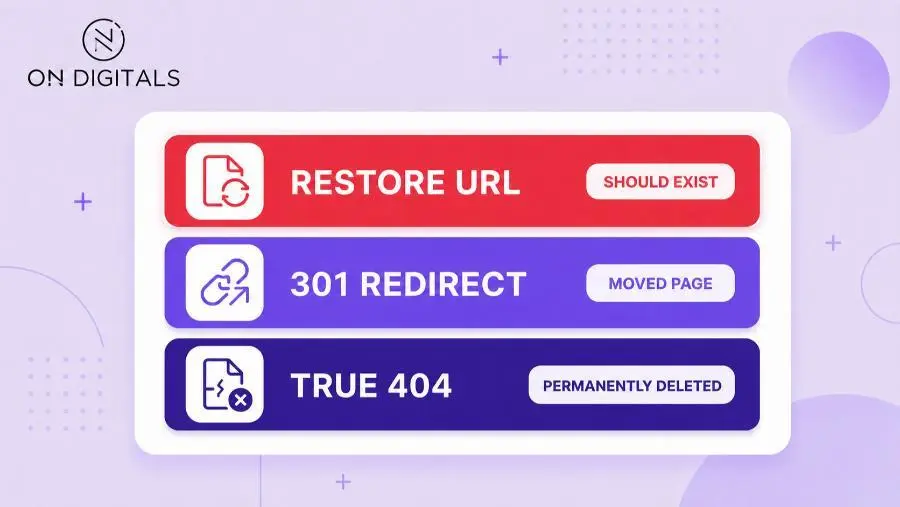 If you only fix the broken destination URL, Google will keep discovering the 404 error. You must trace the error back to its source, updating broken internal navigation links and cleaning up outdated XML sitemaps.
This turns 404 cleanup into a source-level workflow, instead of a repeated URL-by-URL task.
Backend configuration problems
Backend issues can make valid URLs return 404. This often happens after permalink changes, routing updates, CMS migration, or .htaccess edits. A pattern matters here: if many valid URLs suddenly return 404, ask the developer to review routing rules before adding redirects one by one. Redirect logic should also be checked carefully because a rushed fix can create a loop, leading to a redirected too many times error instead of a clean recovery path.
For WordPress or Apache websites, .htaccess errors can affect URL handling. For modern frameworks, route configuration or build output may be the source. The technical owner should confirm whether the page is missing or the server is serving the wrong response.
How to fix 404 error in Google Search Console properly
Fixing 404 errors in Google Search Console starts with diagnosis. The right action may be restoring content, redirecting the old URL, cleaning sitemap entries, correcting internal links, or leaving the URL as a valid 404.
Check whether the issue is hard 404 or soft 404
A hard 404 returns a real 404 response. A soft 404 looks like a missing page but returns 200, which can confuse users and search engines. Google discourages soft 404s because they return a successful response for URLs that do not provide real content.
| Issue type | What happens | Typical fix |
| Hard 404 | Missing URL returns 404 | Restore, redirect, or leave if expected |
| Soft 404 | Error-like page returns 200 | Return 404/410, improve content, or redirect |
| Redirect issue | Old URL points to weak destination | Update redirect target |
| Sitemap mismatch | Deleted URL is still submitted | Clean sitemap and resubmit |
Soft 404s often appear on empty product pages, thin category pages, expired search-result pages etc. For ecommerce websites, this can happen when products are removed but the template still loads with little useful content.
Quick troubleshooting methods
Use quick checks only when a page should exist. Open the URL in a browser, inspect it in Search Console, then confirm the HTTP status with a header checker or crawler. If the browser shows a page but Google reports a different issue, the next step belongs to technical SEO and development.
Avoid spending time on visitor-side checks when the GSC report clearly points to a deleted URL. The important question is whether the page should return content, redirect, or stay missing.
Branded 404 pages for better UX
A helpful 404 page cannot replace a technical fix, but it can protect users who land on missing URLs. The page should explain the issue, offer a relevant next step, and keep the visitor close to their original intent.
For a blog URL, search and popular articles may help. For a service URL, the closest active solution page is usually stronger. For ecommerce, category recovery often works better than a generic homepage button.
Detect 404 error trends with analytics
Prioritize 404 URLs by value before assigning work. A missing URL with organic clicks, backlinks, internal links, or form-assisted visits should move higher in the queue. A crawl-only URL with no replacement can stay as a normal 404.
Use a simple review sheet:
| Field | Why it matters |
| URL | Tracks the affected page |
| Discovery source | Shows where Google found it |
| Page type | Helps estimate business impact |
| Traffic or impressions | Shows search value |
| Backlinks | Shows authority risk |
| Recommended action | Keeps owner decisions clear |
| Owner | Assigns SEO, dev, content etc. |
| Status | Tracks progress |
Step-by-step guide to resolving 404 errors in Google Search Console
This workflow keeps the current article’s original structure while making the process more practical for SEO teams.
Step 1: Access Google Search Console first
Open the correct Search Console property before reviewing errors. Domain properties and URL-prefix properties can show different views, especially when a website uses multiple protocols, subdomains, or staging versions.
Step 2: Open the Page indexing report
Go to Indexing → Pages and review the “Why pages aren’t indexed” section. Google’s Page indexing report explains which pages Google can find and index, plus the reasons some URLs remain outside the index.
Suggested visual: add a screenshot of the Page indexing report with the “Not found (404)” row highlighted.
Step 3: Identify and export 404 URLs
Open the “Not found (404)” issue, then export the example URLs. Add columns for action, source, owner, and status. This helps the SEO team avoid repeated manual review.
Use the export to group URLs:
| Group | Example action |
| Should exist | Restore page |
| Moved | Redirect |
| Deleted with no replacement | Keep 404 or use 410 |
| Still in sitemap | Remove from sitemap |
| Internal source link | Update link |
Step 4: Inspect problematic URLs
Use URL Inspection for high-priority URLs. A page with traffic, backlinks, internal links etc. deserves deeper review than an old tag URL. Check whether Google can access the current version, then compare the live response with the intended action.
For migration cleanup, inspect a few sample URLs from each template. One broken service URL may reveal a wider routing issue.
Step 5: Apply the correct fix
Choose the fix based on diagnosis:
- Restore the page when the URL should exist.
- Redirect when a close replacement exists.
- Remove deleted URLs from sitemap.
- Update internal links at the source.
- Keep 404 or 410 when the page is permanently gone.
- Improve thin pages if they trigger soft 404.
Google notes that a 2xx response can still lead to soft 404 treatment when the content looks like an error page or empty page.
Step 6: Validate and monitor error resolution
After implementation, use Validate Fix only when the issue has been handled across the affected URLs. Google says validation usually takes up to about two weeks, though some cases take longer. If one remaining URL still has the issue, validation can fail and show the example URL that caused the failure.
A fixed page may stay visible in the report while Google recrawls. Google also explains that an issue lifetime can remain in the table until 90 days after the last instance is marked gone.
Step 7: Submit or update your sitemap
Sitemaps should list URLs that deserve crawling and indexing. When a deleted URL remains in the sitemap, Google receives a mixed signal: the sitemap asks for attention, while the server says the page is missing.
After cleanup, resubmit the sitemap in Search Console. For ecommerce websites, this step matters after product cleanup or category restructuring. A discontinued product with no replacement may stay gone, while the sitemap should stop submitting it.
FAQ about fixing 404 errors in Google Search Console
Do I need to fix every 404 in Google Search Console?
You should fix 404 URLs that still matter to users, crawlers, or business value. A deleted blog post with no replacement can stay as 404. A broken pricing page, service page, product URL, or sitemap URL deserves faster review because it affects a more valuable user path.
How long does it take for 404 errors to disappear from GSC?
Search Console validation usually takes up to about two weeks, though some cases take longer. A URL may also stay visible until Google recrawls it. The report is a diagnostic tool, so the live site can be fixed before the report fully clears.
What is the difference between 404 and soft 404?
A hard 404 returns a real 404 response for a missing URL. A soft 404 shows missing or empty content while returning a 200 response. Google discourages soft 404s because they confuse users and search engines.
Should I redirect 404 pages to the homepage?
Redirect a 404 only when the destination closely matches the old intent. A homepage redirect often creates a weak experience because the visitor loses context. For a moved service page, redirect to the new service URL. For a deleted page with no equivalent, keep 404 or use 410.
Should I remove 404 URLs from my sitemap?
Remove deleted URLs from your sitemap when they no longer have a valid page. The sitemap should help Google find useful URLs. If a sitemap keeps submitting missing pages, Google may continue discovering the same 404 issue after every crawl.
Conclusion
Fixing 404 errors in Google Search Console is a decision process. Start with page priority, then check the discovery source, server response, and replacement match. Important URLs may need restoration or a relevant redirect, while obsolete URLs can stay as true 404 or 410.
For SEO teams, the strongest workflow is simple: classify the URLs, fix the source signal, validate after implementation, and monitor recurrence. That keeps technical work focused on pages that affect traffic, lead quality, and business outcomes.

NEWEST POSTS
- Advertising Industry In Vietnam: The 2026 Trends, Channels and Market-Entry Strategy
- Best SEO Company in Vietnam: Latest Shortlist For Businesses
- How To Leverage Social Media For Customer Service Like A Pro?
- Social Media Post Tips – 8 Ways To Boost Engagement
- How To Use Social Media for Sales – In-depth Beginner Guide
Read more