
Google Lighthouse Guide: Turn Lab Audits Into Better UX Decisions
Vincent
11/06/2023
11
Google Lighthouse is an open-source audit tool that helps teams test page quality before users feel the problem. In 2026, SEO teams should use Lighthouse for lab diagnostics, pre-release QA, accessibility checks, mobile performance review, and technical handoff rather than treating the score as the final business goal.
What Google Lighthouse means and when it matters
Google Lighthouse is an automated audit tool for web pages. It helps teams evaluate page quality through controlled lab tests, then turns failed audits into technical recommendations. It matters when a team needs to debug performance, accessibility, SEO basics, or best-practice issues before releasing a page.
Chrome documentation describes Lighthouse as an open-source tool that can run on public pages or pages requiring authentication. It includes audits for performance, accessibility, SEO, and more. Lighthouse can run in Chrome DevTools, from the command line, as a Node module, or through a web UI.
| Lighthouse use case | Best timing | Business reason |
| Pre-launch QA | Before publishing | Catch regressions early |
| Template review | Before a redesign rollout | Protect shared page quality |
| Performance debugging | After PSI or CWV issues appear | Find technical causes |
| Accessibility check | Before handoff | Reduce usability barriers |
| SEO basics audit | During technical review | Catch crawl and metadata issues |
Lighthouse matters most when the team needs repeatable diagnostics. PageSpeed Insights is stronger for real-user field data. Lighthouse is stronger when developers need a controlled test they can rerun after each code change.
For production performance checks, pair Lighthouse findings with PageSpeed Insights so the team can compare lab diagnostics with real-user field data before deciding which issue deserves priority.
Why Google Lighthouse affects SEO, UX, and conversion decisions
Google Lighthouse affects SEO decisions because it exposes technical issues that can weaken page experience. It affects UX because audits can reveal slow rendering, inaccessible elements, weak mobile behavior, or unstable technical patterns. For conversion work, Lighthouse helps teams catch problems before they reach important pages.
The Lighthouse performance score is a weighted lab score. Chrome documentation explains that only metric scores contribute directly to the Performance score, while Opportunities and Diagnostics support improvement indirectly. The score can fluctuate because test conditions, server load, extensions, routing, or page variation can change results.
For On Digitals, Lighthouse should be treated as a decision support tool. The report should help answer:
- Which template has the clearest technical risk?
- Which issue can hurt mobile users first?
- Which fix needs developer ownership?
- Which audit item is safe to defer?
- Which change should be validated before release?
This framing prevents score-chasing. A Lighthouse score is useful, while the real value is knowing which technical issue blocks better user experience.
How Lighthouse works as a lab audit tool
Lighthouse works by loading a page in a controlled environment, collecting metrics, running audits, then producing a report with scores and recommendations. This lab setup makes the results useful for debugging because the same page can be tested again after a fix.
Lighthouse reports can cover several audit categories. The exact set may depend on the workflow, but the core idea remains consistent: Lighthouse tests a page against defined checks and explains where the page can improve.
| Report area | What it helps teams review |
| Performance | Loading and rendering bottlenecks |
| Accessibility | Usability barriers for more users |
| Best Practices | Security and modern web quality signals |
| SEO | Basic discoverability and metadata checks |
| PWA | App-like capability checks where relevant |
This is different from field monitoring. Lab data shows what happens in a controlled test. Field data shows what real users experience. A strong workflow uses both: Lighthouse for diagnosis, field data for priority.
How to read a Lighthouse report without chasing scores
A Lighthouse report should be read from business impact to technical cause. Start with the affected page type. Then review the weak metric, relevant Opportunities, and Diagnostics that explain why the page behaves that way.
Chrome documentation states that the Performance score is a weighted average of metric scores. Lighthouse 10 weights include Total Blocking Time, Largest Contentful Paint, Cumulative Layout Shift, Speed Index, and First Contentful Paint. The report also color-codes scores as Poor, Needs Improvement, or Good.
| Report signal | What it means | Better action |
| Low LCP | Main content appears late | Check hero resource and TTFB |
| High TBT | Main thread is blocked | Review JavaScript work |
| Weak CLS | Layout moves during load | Reserve layout space |
| Accessibility issue | Some users face barriers | Fix semantic or UI problem |
| SEO audit fail | Basic technical signal is weak | Review metadata or crawlability |
A good report review does not treat every warning equally. A large render-blocking issue on a paid landing page deserves more attention than a minor warning on an old low-traffic article.
How to run Lighthouse in Chrome DevTools and CLI
Lighthouse can be run directly in Chrome DevTools. This is the easiest workflow for marketers, SEO specialists, and developers who need a quick lab audit. Chrome’s documentation says teams can open DevTools, select the Lighthouse tab, choose audit categories, then run the report.
For repeatable audits, the command line workflow is useful. Chrome’s documentation shows the Node setup and audit command:
npm install -g lighthouse
lighthouse <url>
The CLI workflow fits teams that need scheduled checks, release QA, or automated reporting. Lighthouse CI can also help prevent regressions, especially when a team ships frequent template or JavaScript changes.
| Workflow | Best fit |
| Chrome DevTools | Quick page review |
| Command line | Repeatable audit runs |
| Node module | Custom technical workflow |
| Lighthouse CI | Regression prevention |
| PageSpeed Insights | Lighthouse lab data plus field context |
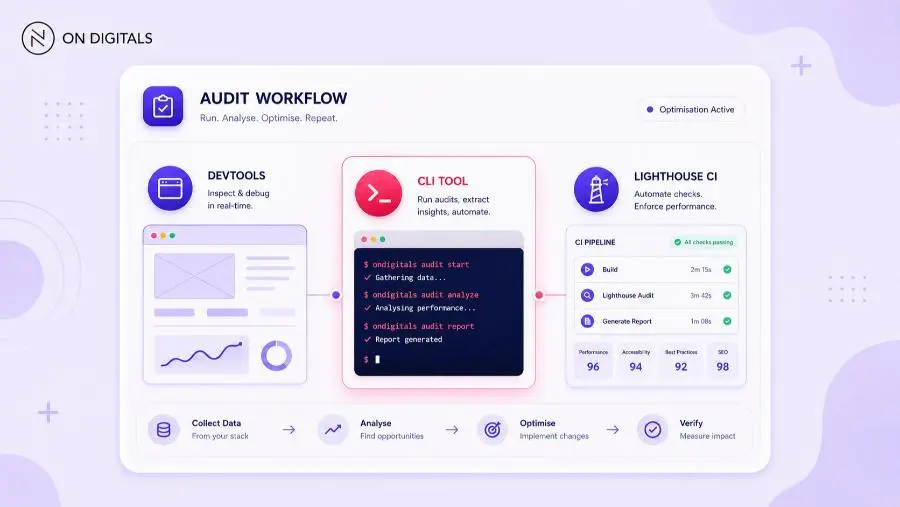 Use Chrome DevTools for a quick page-level diagnostic, and implement Lighthouse CLI or CI when your team needs repeatable, automated regression testing.
For On Digitals content, this section should make Lighthouse feel actionable. The reader should understand when to use DevTools for diagnosis and when CLI or CI becomes more practical.
How to connect Lighthouse audits with SEO reporting
Lighthouse data becomes more useful when it is connected to page value. Instead of reporting “the score is 73,” SEO teams should explain which audit finding affects which business page.
For example, a slow LCP issue on a lead-generation service page can affect first impression. A high JavaScript blocking issue on a product filter page can affect interaction quality. An accessibility issue on a form can affect completion.
| Page type | Lighthouse focus | Reporting angle |
| Service page | LCP and accessibility | Lead confidence |
| Product page | TBT and interaction risk | Purchase path quality |
| Blog template | LCP and SEO basics | Organic visibility |
| Landing page | Performance and layout stability | Campaign efficiency |
| Form page | Accessibility and responsiveness | Submission quality |
This is also where Lighthouse supports agency reporting. The tool gives technical evidence, while the SEO team still needs to translate that evidence into priority, owner, and expected impact.
Step-by-step implementation framework for marketers and SEO teams
A Google Lighthouse workflow should start with the page role, then move into lab testing and technical ownership. This keeps the audit focused on user value instead of a generic score target.
Use this framework:
- Choose priority templates
Start with pages tied to leads, sales, paid traffic etc. - Run Lighthouse in a clean environment
Use Chrome DevTools with unnecessary extensions disabled. Keep device mode consistent. - Record the test setup
Note the URL, device mode, Lighthouse version, date, and test environment. - Read the weak metric first
Check whether the issue affects loading, blocking time, layout stability, accessibility, or SEO basics. - Map the issue to a page component
Identify whether the cause is the hero image, script bundle, form module, ad block, font loading, or template code. - Assign ownership
Frontend code, hosting, design assets, tracking tags etc. may need different teams. - Validate after the fix
Rerun Lighthouse under similar conditions to confirm the lab improvement. - Check field data later
Use PageSpeed Insights or Search Console Core Web Vitals to see whether real-user trends improve.
This workflow helps teams avoid vague tasks like “increase the Lighthouse score.” The better task explains which user-facing problem the audit uncovered.
Common mistakes, risks, and quality checks
Most Lighthouse mistakes come from treating the report as a final verdict. Lighthouse is a lab audit. It is useful for diagnosis, but it does not replace field data, analytics, or business context.
Google’s Lighthouse variability documentation explains that performance scores can change even without a page change. Network behavior, server load, client hardware, browser state, and page nondeterminism can all affect results. It recommends isolating external factors and running Lighthouse multiple times with aggregate values.
Use this QA table before sending recommendations:
| Mistake | Risk | Better action |
| Trusting one run | Variance misleads the team | Use repeated tests |
| Chasing 100 | Low-impact work expands | Prioritize user impact |
| Testing only desktop | Mobile problems stay hidden | Start with mobile |
| Ignoring field data | Real users remain affected | Compare with PSI or GSC |
| Fixing all warnings | Sprint loses focus | Rank by page value |
| Skipping setup notes | Results become hard to compare | Document test conditions |
A strong Lighthouse ticket should answer three questions. Which audit failed? Which page component caused the issue? Which user journey could be affected?
Tools and metrics to review before publishing
Lighthouse works best when paired with supporting tools. PageSpeed Insights adds field context. Search Console shows URL groups at scale. DevTools gives deeper debugging for network, rendering, and interaction work.
Google’s PageSpeed Insights documentation explains that PSI reports both lab data and field data. Field data is powered by CrUX, while lab data is collected in a controlled environment through Lighthouse.
| Tool | Role | Best use |
| Lighthouse | Lab audit | Pre-release QA |
| PageSpeed Insights | Lab plus field view | URL-level SEO review |
| Search Console CWV report | URL group monitoring | Site-level priority |
| Chrome DevTools | Deep debugging | Developer handoff |
| Lighthouse CI | Regression checks | Release workflow |
Before publishing a template update, review the first viewport, key interactions, accessibility barriers, and SEO basics. Then run Lighthouse again after fixes to confirm the lab result is moving in the right direction. When Lighthouse highlights loading, interaction, or layout stability issues, use the Core Web Vitals optimization guide as the next step for turning audit findings into template-level performance fixes.
Useful QA areas include:
- Mobile Performance score.
- LCP element behavior.
- Total Blocking Time.
- CLS risk.
- Accessibility issues.
- Basic SEO audit fails.
- Third-party script pressure.
- Test setup notes.
This keeps Lighthouse practical. Since lighthouse works best when the team uses it with a clear page priority. Instead of auditing every URL the same way, focus on reports that reveal the next technical fix for an important user path.
FAQ about Google Lighthouse
Is Google Lighthouse the same as PageSpeed Insights?
Lighthouse is the lab audit engine. PageSpeed Insights uses Lighthouse for lab diagnostics and adds real-user field data from CrUX when enough data is available. Use Lighthouse for debugging. Use PSI when you need lab findings with real-user context.
What is a good Lighthouse score?
For the Performance category, Chrome documentation lists 90 to 100 as Good, 50 to 89 as Needs Improvement, and 0 to 49 as Poor. A good score is helpful, but the underlying metrics and affected page type matter more than the number alone.
Why does my Lighthouse score change between tests?
Lighthouse scores can change because web performance is variable. Server load, network routing, client hardware, browser extensions, page variation, or background processes can affect results. Run several tests and compare aggregate values before making decisions.
Can Lighthouse improve SEO rankings?
Lighthouse can help teams find technical issues that affect page quality and user experience. It does not guarantee ranking improvements. SEO still depends on relevance, content quality, authority, page experience, and other systems.
When should SEO teams use the Lighthouse CLI?
Use the Lighthouse CLI when the team needs repeatable audits, scheduled checks, or release QA. The CLI is more practical than manual DevTools audits when many URLs or frequent deployments need consistent testing.
Conclusion
Google Lighthouse is most useful when it becomes part of how teams review pages before release. It gives developers a repeatable lab audit, while SEO teams can use the report to connect technical findings with page value.
For On Digitals, the next step is not another score target. It is a clearer audit workflow that shows which Lighthouse issues affect mobile UX, accessibility, technical SEO, or conversion paths. On Digitals can help your team turn Lighthouse reports into focused implementation tasks, so performance reviews become easier to prioritize before important pages go live.

NEWEST POSTS
- Advertising Industry In Vietnam: The 2026 Trends, Channels and Market-Entry Strategy
- Best SEO Company in Vietnam: Latest Shortlist For Businesses
- How To Leverage Social Media For Customer Service Like A Pro?
- Social Media Post Tips – 8 Ways To Boost Engagement
- How To Use Social Media for Sales – In-depth Beginner Guide
Read more