
Insights
Interaction To Next Paint – How To Optimize UX Effectively
On Digitals
15/01/2026
41
Interaction to next paint is a key metric that measures how quickly a website responds to user actions. Fast response times improve user experience and keep visitors engaged. Let’s explore practical ways to make your site more responsive and optimize INP!
Introduction to interaction to next paint in detail
Web performance metrics are essential for understanding user experience on modern websites. They help identify delays and areas where responsiveness can be improved. One of the most important metrics for measuring responsiveness is interaction to next paint.
This metric quantifies the time between a user action, like a click, tap, or key press, and the moment the page visually updates. This value is often tracked as interaction to next paint (INP). It provides insight into how fast a website reacts to users throughout their visit. Unlike older metrics, it captures the responsiveness across the entire user session, not just the first interaction.
INP is especially valuable for interactive pages or single-page applications. It helps developers optimize UX by ensuring smooth and timely responses to all user actions. Monitoring this metric gives a clear view of the overall interactivity and user satisfaction.
Understanding website performance helps identify delays and responsiveness issues
INP Score: What’s considered good?
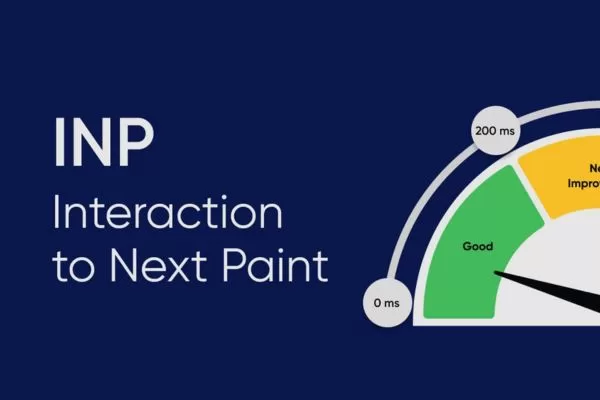
Websites need to deliver fast and responsive interactions to ensure user satisfaction. Quick response times make browsing smoother and reduce frustration. A commonly accepted benchmark for this performance is a good INP score.
When assessing this metric, it’s important to consider differences across devices and network conditions. Measuring the 75th percentile of page loads for both mobile and desktop provides a more accurate picture when running an interaction to next paint test across devices. This approach helps capture the overall responsiveness experienced by the majority of users.
High interaction to next paint scores can negatively impact websites with many interactive features, like online editors or games. Sluggish interaction times often frustrate users and reduce clicks. Conversely, low scores indicate consistent responsiveness, contributing to a smooth and enjoyable user experience.
Fast response times across devices ensure a seamless browsing experience
How to measure interaction to next paint step-by-step
Understanding how interaction to next paint is calculated requires looking at the full user interaction process. It measures the time from when a user initiates an action to when the page visually updates. The following steps break down how this responsiveness is captured across the entire session, not just the first interaction:
Recording input events
Measurement commences the instant a user engages with the website. This could be a click, a tap on a touchscreen, or a keypress. INP focuses on these actions because they are intentional and require a response from the page.
Delay before page reacts
The next phase in measuring interaction to next paint is the input delay, which is the time before the page starts processing the interaction. During this period, the browser may be busy with other tasks. This can temporarily delay the processing of the user’s input.
Interaction handling time
Once the input begins to be handled, the next phase measures how long the event handlers run. These handlers are usually JavaScript functions triggered by the user’s action. This step determines how quickly the page responds to the interaction.
Delay before visual update
After processing the input, the interaction to next paint enters the presentation delay phase. This measures the time taken to render the visual response on the page. It includes tasks like recalculating layouts, applying CSS changes, and repainting content.
Page reflects user input
The final step is the visual update, where the user sees the result of their action. This could be a menu opening, a form submission indicator, or any visual change on the page. It marks the completion of the interaction process.
Combined delays for INP
The total INP is calculated by summing input delay, processing time, and presentation delay. Understanding these steps helps you optimize interaction to next paint effectively. This provides a full measurement from the initial user interaction to the next visual update. It reflects how quickly the page responds to user actions.
Tracking user interactions precisely helps understand performance bottlenecks
How First Input Delay (FID) differs from Interaction to Next Paint
Understanding the difference between FID and INP is essential for optimizing user experience (UX). Both metrics measure responsiveness, but they focus on different aspects of user interactions. The following table highlights their key differences clearly.
| Metric | What it measures | Scope | Example |
| First Input Delay (FID) | Time from the user’s first interaction to when the browser can start processing it | Only the first interaction, usually during page load | User clicks a dropdown immediately after page loads; FID measures delay until dropdown starts opening |
| Interaction to Next Paint | Time from any user interaction to the visual update of that interaction | All interactions across the entire page visit | User types in a search box, selects menu items, or clicks links; INP measures the responsiveness of each action. |
Comparing metrics highlights different aspects of user experience quality
Strategies to boost interaction to next paint performance
Improving interaction to next paint is essential for delivering a fast and responsive website. Optimizing this metric ensures smoother interactions and a better overall user experience. The following tips provide actionable ways to reduce delays and enhance page responsiveness:
Optimize your site’s CPU processing
Reducing CPU load is crucial for faster website responsiveness. Streamlining your code execution leads to more responsive interactions and enhanced UX.
- Run code asynchronously: Execute more of your scripts asynchronously so the interface updates immediately, even while other tasks run in the background. This approach prevents UI blocking and keeps interactions smooth. By separating heavy tasks from immediate UI updates, users perceive the site as faster.
- Analyze and optimize website code: Use performance profiling tools, like DevTools, to monitor the main thread and identify bottlenecks. Pinpointing heavy or inefficient functions allows you to streamline them. Optimized code ensures faster response times and reduces delays for user actions.
- Audit third-party scripts: Evaluate all third-party scripts to see if they slow down your site, as they can impact interaction to next paint (INP). Where possible, defer, lazy-load, or remove unnecessary scripts. Proper management of external scripts helps maintain overall site responsiveness and smooth interactions, improving your INP score.
Speed up input reactions
Minimizing input delay is essential for a faster, more responsive website. Reducing the time between user actions and page reactions directly enhances the user experience.
- Break up main thread tasks: Divide heavy CPU tasks into smaller chunks to prevent the main thread from being blocked. This allows the page to handle user interactions promptly and keeps the UI responsive.
- Monitor total blocking time (TBT): Use the Total Blocking Time (TBT) metric in lab tests to identify scripts or tasks that may affect interaction to next paint. Targeting these bottlenecks helps reduce delays and enhances overall page responsiveness.
- Optimize third-party scripts: Assess third-party code for performance impacts and defer or lazy-load non-essential scripts. Limiting their effect ensures smoother interactions and faster visual updates for users.
Enhance processing performance
Reducing processing time is key to faster interactions and a smoother user experience, directly improving interaction to next paint. Efficient handling of code and layouts ensures your page responds quickly to user actions and maintains a responsive interface.
- Streamline code execution: Identify where the browser spends the most time and refine those areas. Efficient scripts prevent bottlenecks and improve overall responsiveness.
- Prevent unnecessary rendering: In frameworks like React, ensure components only render when needed. Limiting redundant renders reduces CPU load and speeds up interactions.
- Minimize layout and repaint work: Excessive layout recalculations can slow down the page. Optimize styling and structure to reduce layouts and repaints, keeping the interface responsive.
Preload UI elements before complex tasks
Providing immediate visual feedback helps users know the site is responding. Preparing the interface before heavy tasks ensures smoother interactions and a better user experience.
- Give immediate feedback: Display visual indicators, like spinners or skeletons, before running CPU-intensive tasks. It gives users confidence that the site has registered their actions. Immediate feedback prevents the UI from feeling unresponsive.
- Use web workers: For heavy JavaScript operations, consider offloading tasks to web workers to improve interaction to next paint. Running scripts off the main thread prevents blocking and keeps interactions smooth. This approach ensures the page remains responsive even during complex processing.
Use non-blocking dialogs instead
Native dialogs like alert, confirm, and prompt block the main thread and halt interactions. Replacing them with custom, non-blocking UI elements ensures continuous responsiveness. The page allows uninterrupted engagement from users at all times.
Cut down visual delay
Focus on rendering key content first to reduce delays and improve interaction to next paint. Manage queued interactions efficiently, as too many pending updates can increase presentation lag. Simplifying page updates ensures faster visual feedback and a smoother user experience.
Core best practices
Regularly monitor site performance using tools like Google PageSpeed Insights, Lighthouse, or real user monitoring (RUM). Stay updated with changes in Core Web Vitals (CWVs) and adjust strategies accordingly, incorporating interaction to next paint SEO techniques for better site performance. Continuous monitoring helps maintain a responsive and fast user experience.
By applying these techniques, you can greatly enhance your interaction to next paint, resulting in a faster, more responsive, and user-friendly website. Keep in mind that improving INP is an ongoing effort, requiring continuous monitoring and adjustments based on user behavior and site updates.
Applying targeted optimizations can significantly enhance overall page responsiveness
Platforms to monitor interaction to next paint performance
Measuring interaction to next paint is essential to understand how responsive your website really is. Various tools provide insights into INP performance, from high-level scores to detailed analysis. Using the right tools allows you to identify bottlenecks and optimize user interactions effectively.
Google’s CrUX report for web performance
CrUX is a publicly available dataset powered by Google that collects real-world user experience metrics, including INP, across millions of sites. Using tools like BigQuery or PageSpeed Insights, you can explore this data to evaluate your website’s responsiveness. Accessing CrUX helps pinpoint performance bottlenecks and uncover opportunities to enhance user interactions.
WebPageTest
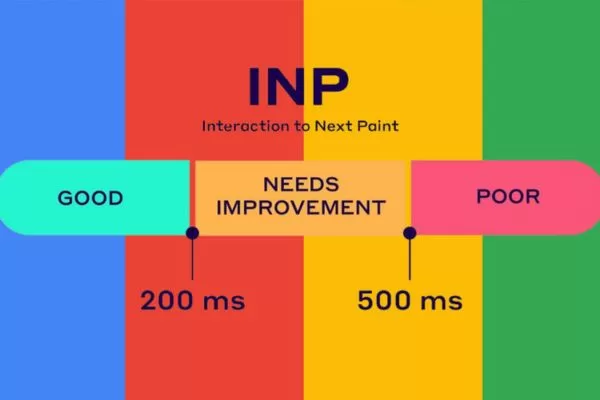
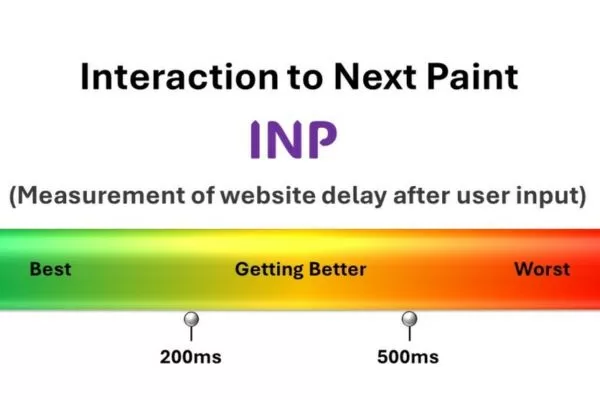
WebPageTest is a widely used online platform that provides a detailed performance evaluation of your site, including interaction to next paint. A score of 0.20s at the 75th percentile is generally considered good for INP. To use WebPageTest, enter your site’s URL, configure your test preferences, and the tool will generate a comprehensive report highlighting responsiveness and other key performance metrics.
Browser Developer Tools
Modern browsers like Google Chrome and Mozilla Firefox include developer tools capable of tracking INP. In Chrome, you can access the Performance panel to record user actions and examine responsiveness in detail. For deeper analysis, Google provides examples of how to identify slow interactions using the performance profiler, helping developers pinpoint bottlenecks and optimize user experience.
Custom JavaScript
If you have a solid understanding of JavaScript, you can develop custom scripts to monitor interaction to next paint for specific elements on your site. This approach provides a highly targeted measurement, allowing you to focus on the interactions that matter most to your users. By tailoring the tracking to critical UI components, you gain precise insights into how responsive your website truly is.
Various platforms provide insights into website performance and bottlenecks
Understanding interaction to next paint through FAQs
Get clear answers to common questions about interaction to next paint. These FAQs help you understand how INP works and why it matters for website responsiveness and user experience.
What is meant by interaction to next paint?
What is interaction to next paint in detail? INP measures the time between a user interaction (click, tap, or keypress) and the moment the page visually updates in response. It reflects the overall responsiveness of a page throughout a user’s visit. Optimizing INP helps create a smoother, more engaging user experience.
How does INP affect my website’s UX?
INP is a core web vitals metric that directly affects user experience. Pages with lower interaction to next paint respond faster to user actions, reducing frustration and increasing engagement. High INP can signal delays in processing interactions, harming usability and retention.
How do INP and FID compare in web performance?
FID (First Input Delay) only measures the delay of the first user interaction during page load. INP captures responsiveness for all interactions over the entire session. This makes INP a more comprehensive metric for assessing overall UX.
What INP score is acceptable for UX?
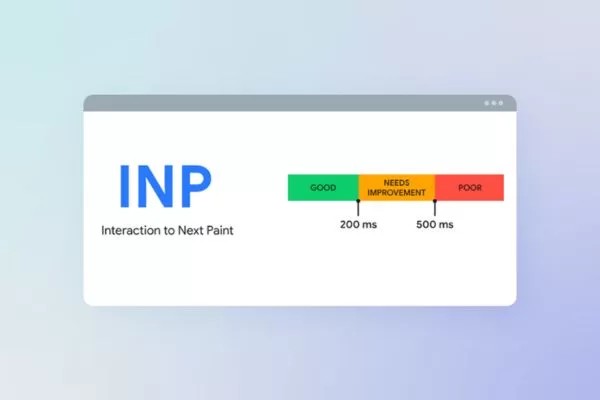
A good INP score is generally 200 milliseconds or less, ensuring quick visual feedback for users. Measuring the 75th percentile of page loads across devices gives a practical view of performance. Lower INP scores lead to smoother, more responsive interactions.
How can website owners enhance their INP score?
Improve interaction to next paint by minimizing main thread work, reducing input delays, and optimizing scripts. Offload heavy tasks with web workers and manage third-party code efficiently. These steps help ensure faster response times and a better user experience.

Answering common questions clarifies website responsiveness for users effectively
Conclusion
Interaction to next paint is a crucial metric for website responsiveness, and leveraging professional SEO services can help monitor and improve it effectively. Optimizing INP ensures smoother user interactions, faster load times, and a more satisfying experience. Businesses like On Digitals can implement strategies to enhance INP while boosting overall web performance and search rankings.
You may also like:
Read more